
 Explore
 Write
Write Chat
Chat Call
Call
Teaching Tools
Zoom Accessibility
Service navigation
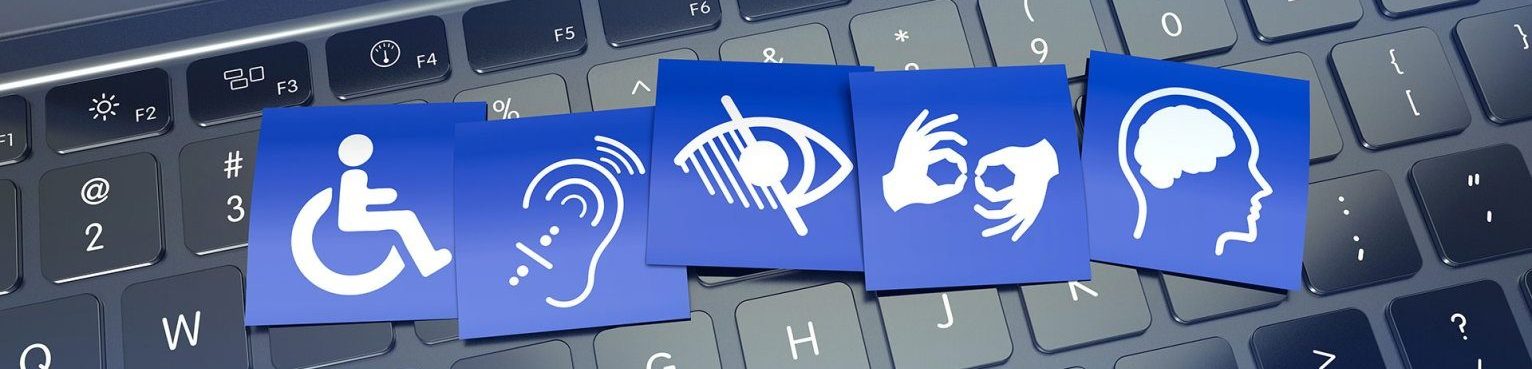
Accessibility features can be useful for all instructors and students in learning and participating fully in the online classroom by supporting different learning styles. Zoom’s accessibility capabilities help to ensure that virtual communication in the online classroom is available, accessible, and supportive for as many people as possible.
Best Practice Reminder:
Download and install the latest version of the Zoom Workplace app, whether you are a host or participant.
Access your UT Zoom Account Settings:
- In the Zoom Workplace desktop app, select the Settings gear located on the bottom-left of the app window. Or, select your Profile icon in the top-right corner and then choose Settings.
- If you are using the classic Zoom Web experience, select Settings on the left-side menu.
- In the new Zoom Web Experience, select your Profile icon on the top-right. Choose My Account, and then choose Settings.
Live Captions and Transcripts

Captions and transcripts assist deaf and hard-of-hearing users, English language learners, instructors and students in noisy environments, as well as attendees with processing or attention differences. Zoom’s Captions and Transcripts include:
- Automated live captions during the meeting. Live captions can be pinned or resized during the meeting.
- Full meeting transcripts are available in the Zoom Cloud Recording or when saved before the meeting ends. Cloud recording transcripts can also be downloaded.
- Please review this Zoom article on FAQ about Zoom Captions and Transcripts for more information.
- To change the font size of the in-meeting Chat and captions, select Settings in the Zoom Workplace desktop app and then choose the Accessibility section.
- Captions and transcripts are automatically enabled for every meeting you host with your UT Zoom account. During the meeting, select the Show Captions icon on the meeting toolbar to immediately display meeting captions. The captions will display at the bottom of the meeting window. To view the meeting transcript during the meeting, select the More icon on the toolbar and then choose Transcript. The meeting transcript will display to the right of the content window.
- Zoom Cloud Recording transcripts will stream with the cloud recording. The transcript can be downloaded as a .vtt file and may be opened with a text editor.
- Zoom recording transcripts are not integrated with local recordings.
- Instructors, please keep in mind that we have two UT Zoom environments. The UT Zoom HIPAA environment may have different features applied by default, due to HIPAA protocols.
- Captions and Transcripts are automatically enabled for each UT Zoom meeting. During the meeting, select the Show Captions icon on the meeting toolbar to immediately display meeting captions. The captions will display at the bottom of the meeting window. Students may stream the transcript along with the cloud recording, if the session is recorded in the Zoom Cloud.
Keyboard Accessibility and Screen Reader Support

Features like keyboard shortcuts and screen reader compatibility assist users who cannot use a mouse, are visually impaired, or have an audible learning preference. These features are available for both instructors and students in a meeting.
- In the Zoom Workplace app, navigate to Settings and then choose Keyboard Shortcuts. For more information including a list of available shortcuts, review this Zoom article on using hot keys and keyboard shortcuts.
- JAWS and NVDA are supported. Students are encouraged to reach out to Student Disability Services for assistance.
- Screen Reader settings are in the Zoom Workplace app via Settings, and then selecting Accessibility.
Audio and Video Accessibility Features
Content layout options, audible notifications, and options for adjusting the Chat and caption font sizes are some of the tools available for users who may need assistance with the audio and video aspects in the online classroom. These features are also useful for attendees with unreliable internet and neurodivergent learners.
Keep in mind the meeting toolbar for an instructor contains more options than the meeting toolbar for a student or participant.
- Tools like the webcam, on-screen text Chat, and Reaction symbols are available for all attendees. Please keep in mind, though, that instructors control access to all tools during the meeting.
- All attendees can adjust their Chat text font size, captions size, and text color via the Zoom Workplace desktop app. For more information, review this Zoom article on adjusting the size of chats and captions.
- In the Zoom Workplace app, select Settings and then Notifications & Sounds or Accessibility to make changes.
- To adjust audible notifications during the meeting and how to receive audio including selecting noise suppression, select Settings and then choose Sounds & Notifications in the Zoom Workplace app.
- Select the View icon on the top-right of the meeting window to quickly adjust the content layout, such as moving between Gallery and Speaker view. Hosts can also spotlight speakers and interpreters, as well as engage the Sign Language Interpreter View for their sessions.
- Select the View icon on the top-right of the meeting window to explore content layout options.
- If enabled by the instructor, students can view webcam content via the sign language interpreter view.
- Explore the webcam pinning feature to assist with focusing webcam content.
AI Tools

Zoom’s AI tools include meeting summary and recording smart chapters, two features that can assist users with note taking, accessing information at their own pace, and organizing information into more important content and action items.
Instructors are encouraged to enable the following features in their UT Zoom account settings before starting their meeting.
- Meeting Summary – When this option is engaged, Zoom sends a summary of topics mentioned in the meeting. The meeting summary can be shared with only the host, or all attendees. For more information, review this Zoom article on using the meeting summary with AI.
- Recording Smart Chapters – This option is only available for cloud recordings. Recording smart chapters will automatically provide viewers with searchable transcripts, chapter markers, and highlight key moments. For more information review this Zoom article on recording smart chapters.
AI tool settings can be activated and then engaged on a meeting-by-meeting basis, and are controlled by the instructor or host of the meeting. After enabling the AI tools, select the AI Sparkle icon in your meeting to engage the feature for that meeting.
- Instructors:
- Activate Zoom’s AI tools in your account.
- Go to tennessee.zoom.us and select “Create or Log in.”
- Use your UPN as your username: Your UPN is the email address used to sign in to UT services, such as email, typically in this format:
- Faculty and Staff: Use NetID@utk.edu
- Students: Use NetID@vols.utk.edu
- Use Password Management – Office of Innovative Technologies if you aren’t sure which email address you should be using.
- Password: Enter your NetID password.
- If you are using the classic Zoom Web experience, select Settings on the left-side menu. If you are using the New Zoom Web experience, click on the Profile icon on the top-right. Choose My Account and then Settings.
- Select Zoom AI and toggle options to On as desired.
- Activate Zoom’s AI tools in your account.
- Access to AI tools is controlled by the meeting host. However, if you host a meeting, you also have access to meeting summary and recording smart chapters.
Best Practices and Resources
Technical Recommendations

The information on this page references UT Zoom account settings available at tennessee.zoom.us and settings within the Zoom Workplace app.
- If you are using the classic Zoom Web experience, select Settings on the left-side menu to access your UT Zoom account settings.
- In the new Zoom Web Experience, select your Profile icon on the top-right. Choose My Account, and then choose Settings.
- In the Zoom Workplace app, select the Settings (gear) icon, or click your Profile icon and then select Settings, to access customizable options.
Review Zoom’s comprehensive list of compatible hardware items such as webcams and headsets.
- Instructors, be sure to log in and start your meeting to claim the host role.
- Have the best quality lighting, webcam, and microphone as possible to assist your participants in receiving a good quality broadcast.
- During the meeting, be sure to verbally greet students, describe content items, and repeat questions.
- Share content items with students as necessary via your Online@UT (Canvas) course.
- If you require additional assistance with your classes, please contact Student Disability Services.
- Attend a LiveOnline@UT (Zoom) Test Flight. These online sessions offer an opportunity to experience the online classroom and explore features. More information regarding Test Flights is available on our System Requirements page.