
 Explore
 Write
Write Chat
Chat Call
Call
Instructional Support
Structuring Your Canvas Course Site for Student Success
Service navigation

Canvas helps instructors organize and present course content, enabling them to create and manage digital learning environments for their students in support of in person, blended, or online courses.
Canvas provides tools to share a syllabus, provide course materials, link to online textbook and publisher content, create quizzes, grade completed work, facilitate discussions, and much more. For students, Canvas serves as a central course hub.
Course considerations
Many considerations go into designing a Canvas course site. For example, what types of and how much course content you have, when and how students are expected to access and use the materials, whether they need to access them only once or reference them throughout the term. In general, the organization of your course site should reflect the course structure in your syllabus. Being consistent in how you add course material to the course site makes it easier for students to find the material.
The following information and resources are provided to help instructors consider ways to provide Canvas course sites that are well-organized and structured for student learning.

STUDENTS THRIVE WITH CONSISTENCY
Student evaluations and anecdotal comments indicate that students put a premium on clarity and organization and consistency when it comes to Canvas course sites.
A well-organized course encourages students’ motivation, raises their performance, improves their persistence, and supports first-generation students, leading to increases in overall satisfaction.
—Wang, et al. 2015 and Roksa, et al. 2017
Simple Steps for Building a Basic Course
1. Build your modules
Canvas provides great flexibility to accommodate instructor’s delivery style, but it really favors a modular design. Modules can be considered as a package of instruction built around a concept, a unit, or a week. In a modular course, instruction is chunked and sequenced through a series of self-contained modules with a consistent pattern. Course modules allow for the grouping of reading material, assignments, discussion posts, reflections, and assessments. With a predictable module structure, concepts can build on each other and you can scaffold learning effectively. Your students will know what to expect, and they can spend more time on learning rather than on navigating the course.
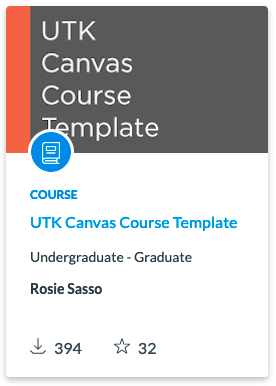
- Consider using the UTK Canvas Course Template for a clean structure that can be easily adapted to serve your individual needs.
- Not sure how to get the UTK Canvas Course Template? Read the OIT Knowledge Base instructions on getting the UTK Canvas Course Template
- See how to apply the UTK Canvas Course Template.
Welcome to the UTK Canvas Course Template video tutorial. In this video, we’ll be showing you how to apply the UTK Canvas course template, as well as sharing a few other best practices for getting started with your course. The UTK Canvas course template is designed to help you, the instructor, efficiently set up your courses and to promote a consistent student experience among courses in Canvas. You’re not required to use the template. You can incorporate all or just some of its elements to suit your specific needs and instruction modality, whether it’s online, hybrid, or face to face. You will receive an empty Canvas course shell two months before the start of a semester to verify availability dates. Visit our course access calendar.
When you apply a template to your Canvas course the settings and navigation in your course will be replaced with those in the template. Apply the template before you start creating or copying course content. We will now apply the Canvas course template. Select Commons in the global navigation menu and in the search field enter UK canvas course template and here it is. Select the title and now you can preview the contents. You can add the template to your Commons favorites for future use.
Ready to make this template your own? Select the Import Download button. Place a checkmark next to the course or courses into which you want to apply the template. Select Import Into Course. Allow a few minutes for the template to appear and welcome to your new and improved course.
If you’ve already taught the course and would like to copy all or a few materials to your new Canvas shell, make sure you do that after you apply the Canvas course template. In the course navigation menu. Click the Settings link, then Import Course Content. In the Content Type dropdown menu, select Copy of Canvas Course, search for and select the course you would like to copy from. Choose whether to import all content or specific content from the course. Consider the options to adjust or delete due dates associated with the past semester’s course events and assignments. Finally, select the import button. If you chose to import specific content, you’ll need to select the content.
If you’re copying a lot of content, you may want to take a five minute break before returning to your Canvas course site.
Now that you’ve applied the template and perhaps copied content from a previous course, you’re now ready to tackle the course homepage. No matter what homepage you had in the course you copied from the templates, homepage becomes your course entry point. The templates home page provides guidance and structure for your students each time they enter your course. You can edit the home page as needed to make it your own.
For example, you can insert a personalized course banner which it can gladly create for you, add links or even embed a course introduction video. Please refer to our Canvas course homepage video to learn more.
Let’s now navigate to Modules. Modules will help you structure course content by day, week, unit, or topic. Each module can contain pages, files, discussions, assignments, quizzes, and other learning materials. Notice that the page how to use this template contains detailed instructions on building out your course using the template. The first module in the UTK Canvas course template called module zero is introduction to the course, and you are welcome to customize this content as needed. Module One showcases a unit structure that includes a module overview, tasks and assignments, learning resources, and sssessment and review. These content items can be used for both face to face and online delivery modalities. With this layout, for a fully online course, all instruction should be more detailed. While you’re on campus, class may appreciate just a simple list of reading materials and links. And what about the content you imported from a previous course? Your modules, assignments, quizzes, pages, and discussions to adapt your existing content to the templates visual design. Refer to our detailed instructions on the how to use this template page. We suggest that you build the first module completely to get a feel for the instructional flow and structure. You may want to delete unwanted pages or add assignments. Then you can duplicate the module. Canvas will create copies of all items in the original module with the word copy in the title. The copied module will give you a structure for building the content and assignments.
At this point, you may want to decide which items on the course menu. Your students will actually need will they need the syllabus tool? It’s a definite yes. This is where you can create a link to your syllabus file. In addition, all the assignments and calendar events will be listed there in the chronological order of due dates. How about grades? Another clear? Yes. Once you decide which items you want to keep on the course menu, go to Settings > Navigation, and disable all unused items.Now your course menu is nice, clean, and free from distractions.
It’s also important to check your course for broken links. The course link validator searches through course content and returns invalid or unresponsive links in both published and unpublished content.
When you’ve completed your course development, your last step is to make your course available to your students. Be sure that you have published your course from your home page. Click on the publish button located in the upper right hand corner. Thanks for joining us. We talked about a lot of things, but there are more. Remember to visit the how to use this template page in your course, and don’t hesitate to reach out to the help desk at 865-974-9900 or online at help.utk.edu. When you have questions, we are here to help you succeed.
2. Choose your homepage
Student success in your course starts from the homepage. The homepage provides several options for choosing an entry point to the course.
- Learn how your Canvas Homepage can give your students an edge by guiding them to the information they need to be successful in your course. Use the course calendar to provide due dates for assignments and important course dates and deadlines.
Welcome. In this presentation you will learn how your UT Canvas home page can give students an edge by guiding them to the information they need to be successful in your course. The home page is where students will always enter your Canvas course. Let’s get started.
Does your home page look like this? [on screen image of Canvas course Modules list] If it does your students might be wondering, “Am I in the right course?” “Where do I start?” “Who is my instructor for this course?” This example uses the default Canvas course setting as your home page and it may be confusing, boring, and rather uninviting. Why not offer your students more guidance and structure with a home page like this? [on screen image of a Canvas page with decorative banner, instructor image and contact information, and structured outline of modules]
The syllabus option is our first recommendation for a home page layout because when assignments are created in your course, it automatically includes a chronological list of course assignments and due dates at the bottom of the syllabus page. Additionally, it provides all of the following in one simple and consistent format.
A welcome message – which is a way to introduce yourself and provide an overview of your course. Instructor contact information, course description, a link to your actual syllabus document, getting started information to provide guidance on how and where to start within your course. Relevant links – which can link directly to sections of the course or other resources both within, and external to your course, and a chronological list of course assignments and due dates at the bottom of the page under Course Summary. You can reinforce due dates for various events, activities, or assignments within your course by utilizing the Calendar feature in Canvas. Remember to add some visual elements like a course banner to make your course home page more appealing and recognizable to your students.
Our second choice for a home page layout is called pages front page. Like the syllabus option, it also provides the flexibility for customization. You can add formatted text, insert links, include images, and embedded videos or other multimedia course content. The main difference is that the list of assignments and events will not display automatically with this option.
After entering your course site, select the Choose Home Page button on the right of the screen to select your preferred home page layout. There are five choices for a Canvas home page. Only two of them are customizable – syllabus or page front page. The other three are generally not good choices because they cannot be edited.
Please note that if you select pages front page you first need to create a page to select. Remember that you want your home page to be welcoming, organized, and consistent. The information presented should prepare students for their learning experience by providing the necessary instructions and resources for success. We hope you found this presentation helpful. If you have any questions, please contact the OIT HelpDesk at 865-974-9900 or help.utk.edu. For more information about Canvas go to online.utk.edu.
3. Clean up your course menu
Course specific menus contain many options, and not all of them are always appropriate for you course. Once you have built you modules and set your homepage, consider removing the extras on the left-side course menu. Keep distractions to a minimum. Your students should only see the course-specific menu options that allow them quick and easy access the information they need.
If you already know how to use Canvas, but want to learn more, visit this page »
Using Third-Party Tools and Course Materials
Are you one of the many instructors at UT Knoxville that utilize third-party tools as a compliment to your Canvas course? As faculty continue to adopt more and more features of Canvas, many are integrating publisher content (MyLab and Mastering, Matlab, Webassign, to name a few) into their Canvas course modules. OIT supports the integration of third-party tools that adhere to the Learning Tools Interoperability (LTI) standard. Canvas refers to these as Apps. Each App is vetted by OIT for security, accessibility, and usability prior to approval.
Canvas Apps provide deep linking that allows third-party content to be integrated directly into Canvas, and accessed seamlessly from a Canvas course site using the LTI capabilities of the App. By employing deep linking, third-party apps can pass information to and from Canvas in a nearly invisible manner. Student don’t even know that they are visiting an external site, and content appears as though it is actually in Canvas. View instructions on adding external tools to a course Module.
Request an LTI/App integration with Canvas
If you would like to request a learning tool be evaluated for addition to this list, please first consult our LTI integration process.
Some faculty use their own standalone websites or other avenues to deliver course content and assignments instead of Canvas or Canvas integrations. Regardless, be sure to include specific information in your Canvas course site and your course syllabus that directs students to the appropriate resources. If your class includes assignments that require student to access content through third-party vendors, consider posting reminders about these assignments in your Canvas course site.

Using Textbooks
OIT partners with the VolShop to provide first-day access to digital textbooks via Canvas. Links to textbooks are automatically added to all Canvas courses using two programs: Course Access for graduate students and Total Access for undergraduates. Total Access and Course Access provide the specific materials assigned by the instructor for every student registered for the class. It is available for all students on the first day of class through Canvas, at the same reduced price, so everyone has the same opportunity for success. Total/Course Access provides savings to students, ease of access, and the ability to use financial aid, grant and scholarship funds.
Read more about Total/Course Access and Canvas.