
 Explore
 Write
Write Chat
Chat Call
Call
OIT News
Service navigation
Using Grade Posting Policy to Manage When Students See Their Grades
By default, Canvas shares grades with students as soon as they are entered in the gradebook. This makes a lot of sense for, say, an auto-graded quiz where students see their scores as soon as they complete their attempt. However, this may be less desirable behavior when an instructor is grading essays. Depending on how long it takes to grade a whole class’s submissions, some students may receive their grades well before their peers.
Instructors can change the grade display settings on individual, or all, course assignments. Known as the Grade Posting Policy, this feature disables the visibility of grades until the instructor is ready for posting.
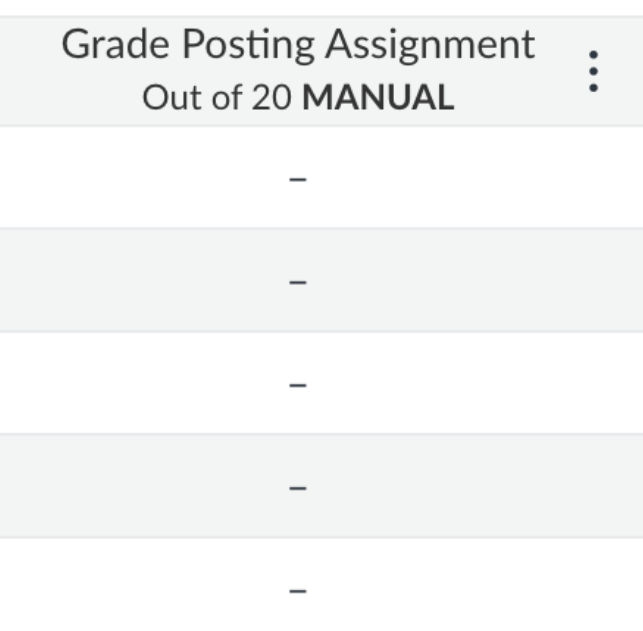
Locate the setting for an individual assignment in the gradebook. When hovering over the assignment name, select the three vertical dots that appear. Grade Posting Policy is one of the menu options. Change the policy to Manually and the assignment will now require the instructor to manually post grades. Additionally, the word MANUAL will appear beneath the assignment name.
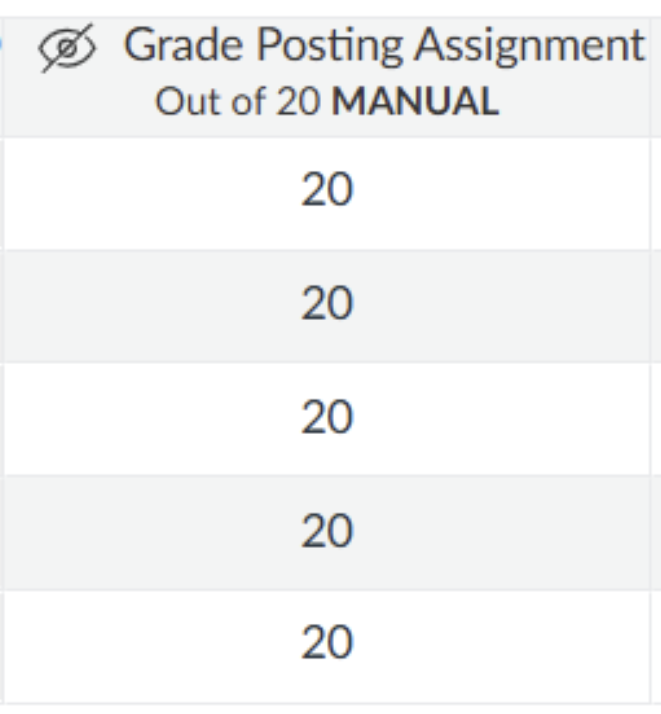
Once the policy is set to manual, there are a few ways to tell if grades have been posted. If there is at least one unposted grade for a particular assignment, there will be an icon of an eyeball with a slash through it to the left of the assignment name.
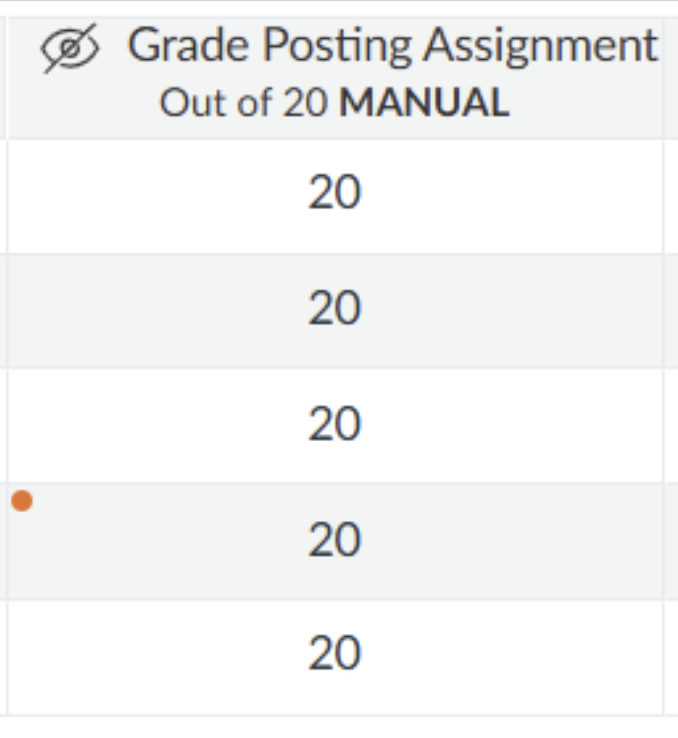
But what if some students have had their grades posted, and some haven’t? To make this easy to determine, click the settings gear in the upper right corner of the gradebook and select the View Options tab found across the top of the popup window. Now select the checkbox next to the View hidden grades indicator text and select Apply Settings.
Once you’ve done this, in addition to displaying the slash eyeball icon, there will be an orange dot next to any hidden grades.
In this example, all grades have been posted except for the grade in the fourth row.
For more information, visit the How do I use posting policies in a course? Canvas Community guide.