 Explore
 Write
Write Chat
Chat Call
Call
OIT News
Service navigation
New Features of the Canvas—Zoom Integration

Instructors may schedule and start their Zoom meetings via our UT Zoom page, the Zoom Workplace app, or the Canvas—Zoom integration within a Canvas course.
Benefits of scheduling the Zoom session within your Canvas course:
- Students are automatically notified of the session, and the session appears on the course calendar.
- Zoom cloud recordings are immediately shared within the Canvas course.
New Features and Getting Started
The new features build on the integration between Canvas and Zoom, including an option to create Zoom Breakout Rooms based on Canvas group details.
Create Breakout Rooms based on Canvas Groups
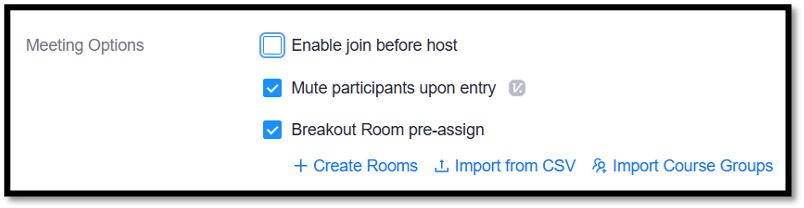
When you schedule the Zoom meeting in your Canvas course, you can now create pre-assigned Breakout Rooms based on Canvas groups.
Tips for getting started:
- In the Canvas course, select the Zoom link in the course navigation menu and then choose “Schedule a New Meeting.” In the Meeting Options section of the schedule screen, add a check by “Breakout Room pre-assign.” Choose “Import Course Groups.”
- For the best results, we recommend that all students log into their UT Zoom account before attending the Zoom session.
Sync the Zoom Attendance to the Gradebook
This option is only available if students attend the session via the Canvas/Zoom integration. Once the session is over, instructors can review and sync the attendance data to the Canvas Gradebook.
Tips for getting started:
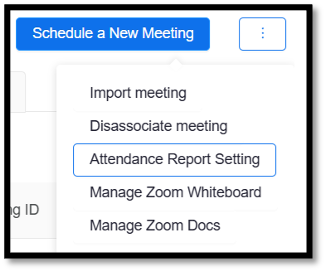
- In the Canvas course, select the Zoom link in the course navigation menu. Next, select the three dots icon on the top-right and choose “Attendance Report Setting.”
- Be sure to configure each field in the attendance configuration window.
- For the best results, we recommend that all students log into their UT Zoom account before attending the Zoom session.
For more information and step-by-step instructions, please review the Zoom Support article: Syncing attendance report with Canvas Gradebook.
Zoom “Canvas” and AI Tools
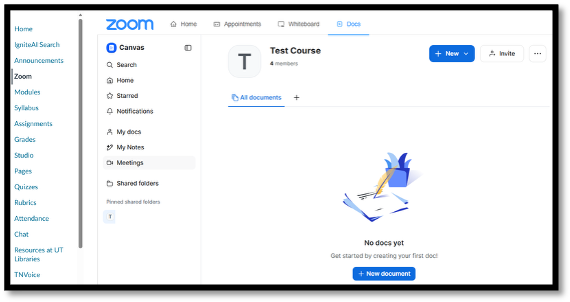
Access Zoom’s “Canvas” of tools like Zoom Docs, My Notes, and Meetings from within your Canvas course and engage Zoom’s AI features.
Tips for getting started:
- Be sure to enable the Zoom AI features in your UT Zoom account to access the integration. Sign in to your UT Zoom account on the web portal at tennessee.zoom.us, select Settings on the left-side menu, and then choose Zoom AI at the top of the Zoom window. Toggle features “On” as desired.
- In the Canvas course, select the Zoom link in the course navigation menu. Choose “Docs” at the top of the page.
For more information, please review the Zoom Support article: Getting started with Zoom Canvas.