
 Explore
 Write
Write Chat
Chat Call
Call
OIT News
Service navigation
Understanding and Managing Graymail
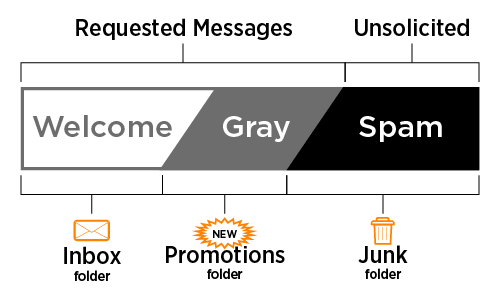
Graymail is email from real, legitimate senders that you may have signed up to receive but do not regularly read. Examples include emails from vendors, store promotions, newsletters, and advertisements. These emails will be moved to your new Promotions folder.
Here are a few things to note:
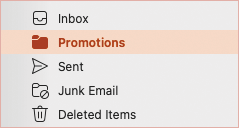
- The Promotions folder: Once filtering is enabled, a new Promotions folder will automatically appear in Outlook. External newsletters, subscriptions, and marketing emails will move to that folder rather than remain in your Inbox. For easy access, you can add the Promotions folder to your Favorites list in Outlook.
- Zero deletions: No messages will be deleted. Messages moved to Promotions will still be available in Outlook.
- Review your Promotions folder regularly for a clutter-free Inbox: If a message ends up in the wrong place, move it to the appropriate folder, Inbox or Promotions, so Outlook learns where similar messages go in the future.
How Graymail detection workS
The detection process leverages AI to inspect inbound emails and identify graymail. Instead of relying on basic filtering rules, it uses thousands of signals from UT’s email tenant to build an organization-specific behavioral profile. When Outlook identifies a message as graymail, it moves that message to the Promotions folder instead of your Inbox.
Teach Outlook how to handle YOUR Graymail
When you move messages between your Inbox and the Promotions folder, Outlook uses those actions to better sort similar messages in the future.
- Promotions to Inbox: When you review your Promotions folder, drag any message that should have stayed in your Inbox back to the Inbox.
- Inbox to Promotions: When you move a message from your Inbox to the Promotions folder, Outlook will treat future messages from that sender as promotional and move them to Promotions.
- It’s important to note that moving a message from Promotions to any other folder will not train Outlook.