
 Explore
 Write
Write Chat
Chat Call
Call
OIT News
Service navigation
Using Microsoft Clipchamp for AI-Voiced Text-to-Speech
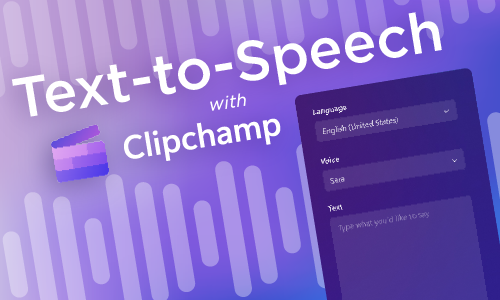
If recording your own voice feels uncomfortable or is too time‑consuming, you can use Microsoft Clipchamp to create polished, professional‑sounding voiceovers with text‑to‑speech. Try Microsoft Clipchamp for recording text-to-speech audio voiceovers. Clipchamp is available to you in your Microsoft 365 subscription. In addition to its text-to-speech capabilities, you can use Clipchamp for creating short videos from scratch, editing videos, adding recordings of yourself over backgrounds, and more!
View the Microsoft Clipchamp: Recording Text-to-Speech Knowledge Base article for step-by-step instructions. Once you have completed the recording, you can then embed the file into a PowerPoint presentation or save it for later use.