
 Explore
 Write
Write Chat
Chat Call
Call
OIT News
Service navigation
Organize Zoom Content with Meeting Summary Templates
The Zoom AI Companion includes the meeting summary feature, which provides hosts with a text summary of topics covered in the meeting. Zoom has recently expanded this feature with preset meeting summary templates that organize the content in different ways. Preset template types include brainstorming, lecture summary, and discussion. For example, if the brainstorming template is selected, Zoom meeting summary preset formatting will organize content with topic headings such as “Key Takeaways” and “Discussion Details.”
Hosts may set a default meeting summary template for all meetings in their account or choose a template when scheduling a new meeting. For more flexibility in the summary template format, choose a template when you schedule the meeting. If no specific meeting summary template is selected, Zoom will use the general template to organize meeting summary content.
To set a default meeting summary template for every meeting you host:
- Launch tennessee.zoom.us.
- Select the Create or Log In button, and sign in with your UT NetID and password.
- Select Settings on the left.
- At the top of the page, select the AI Companion heading.
- Scroll down to the Meeting section.
- Toggle the “Meeting summary with AI Companion” and “Meeting summary templates” features to “On.”
- In the “Default summary template” section, select the pencil icon to choose a default.
Manage Summary Templates Selection Screen
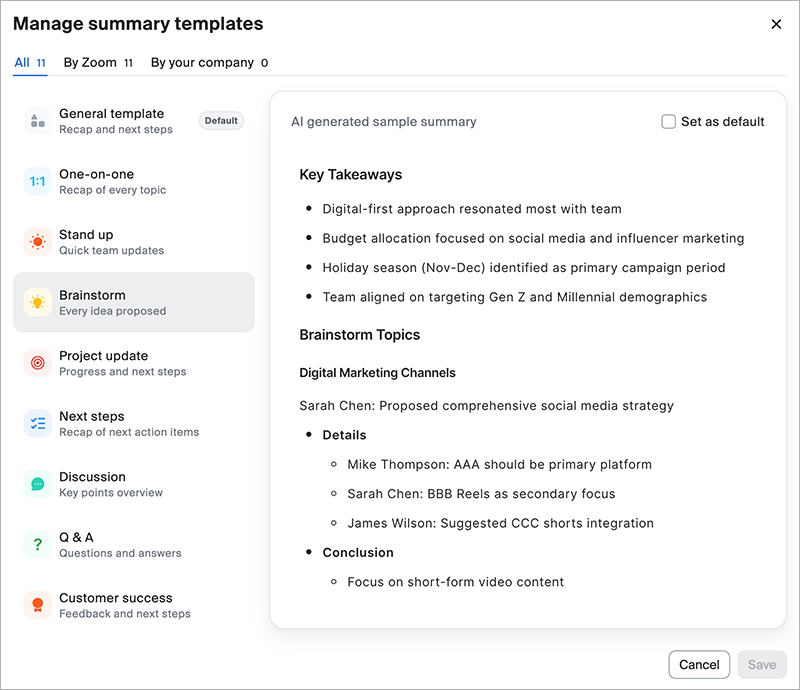
Choose from a variety of Meeting Summary Templates, including General, One-on-one, Stand-up, and Brainstorm. In this example, the Brainstorm template organizes content under Key Takeaways and a bulleted list of Brainstorming Topics.